![fourvenues.LOGO.blanco.png]](https://base-conocimientos.fourvenues.com/hs-fs/hubfs/fourvenues.LOGO.blanco.png?height=40&name=fourvenues.LOGO.blanco.png)
Before you begin
What are Paylinks and what are they for?
A Paylink is a personalized, one-time-use link that allows you to sell tickets privately and with control. With this system, you can decide exactly who can access your events, how many tickets they can purchase, and how long the link will remain active.
ℹ️ Who can use this feature?
-
Users with Admin or Event Management permissions can configure Paylinks.
-
All Fourvenues PRO users can send Paylinks.
Step by Step
1. Set up the ticket type and enable Paylink sales
-
Go to the ticket types section of the event via Event Settings > Tickets.
-
Create or select the ticket type you want to sell via Paylink.
-
In the ticket type settings, open the “Options” tab and enable “Pay
-
link.”
Once enabled, you can set the number of hours the link will remain active.
If you don’t set a time limit, the link will be valid until the purchase is made.
Don’t forget to save your changes.
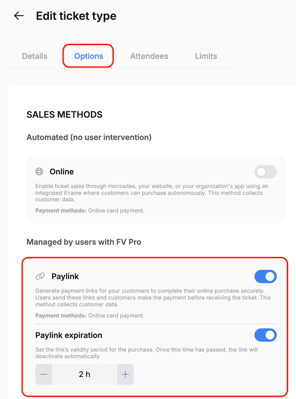
If you don’t set a time limit, the link will be valid until the purchase is made.
Don’t forget to save your changes.
2. Send a new Paylink and choose the delivery channel
Return to the event calendar and click on “New Client.”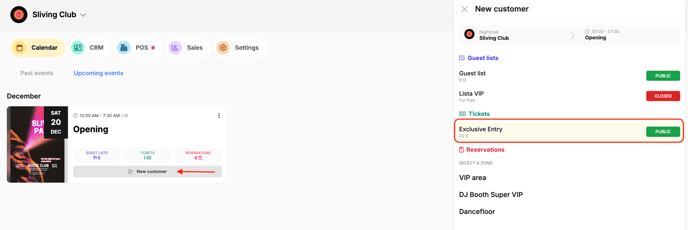
Select the ticket type for which you enabled Paylink and enter the required details:
-
Phone number (including international prefix) and/or email
-
Choose the delivery channel:
-
If both phone and email are entered, the link will be sent to the phone by default.
-
SMS is used by default, but you can also choose WhatsApp.
-
If only an email is entered, the link will be sent via email.
-
-
Select the language of the message
-
Define the number of tickets assigned to this link
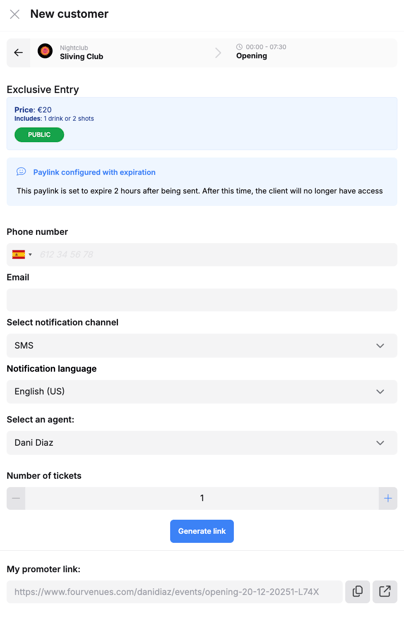
⚠️ Even if the link allows up to 5 tickets (for example), if the customer only selects 1 ticket during the first purchase, the link cannot be reused for the remaining 4.
Click “Generate Link.” The system will create the Paylink and send it to the specified recipient.
⚠️ The Paylink is valid only for the first purchase and only for the configured number of tickets. If the recipient doesn’t complete the purchase within the set time frame, the link will expire automatically.
3. Track your sales
-
Go to the Ticket list > three-dot menu > Paylinks
From this list, you can check the status of each Paylink, how many tickets were purchased with each, and who received each link, among other details.
🟠 Pending: The Paylink has been created and sent but hasn’t been used yet. It’s still available to the recipient.
🟢 Completed: The Paylink has been used and the purchase was successfully made. The link is now inactive.
🔴 Expired: The Paylink has passed its configured expiration date or time and can no longer be used. Expired links cannot be reactivated.
🧠 Reminder: All Paylink sales are reflected in your financial report, allowing you to easily manage and analyze your performance.
👥 If you need more information, feel free to contact us at help@fourvenues.com, letting us know how we can assist you.