![fourvenues.LOGO.blanco.png]](https://base-conocimientos.fourvenues.com/hs-fs/hubfs/fourvenues.LOGO.blanco.png?height=40&name=fourvenues.LOGO.blanco.png)
Before you begin
Reservations undergo state changes based on various factors, including zone configurations and actions taken by the customer and/or venue staff before, during, and after the service.
ℹ️ Who can review or modify reservations states:
Users with permissions for:
- Admin
- Event management
- Reservation management
Step by step
To check the status of your event reservations, access the sales list. Navigate to the event calendar: Event > Reservations.

By default, you'll see a list filtered to show reservations in the "Accepted" and "Pending" states.
*The "Pending" state will only be assigned if the option "Auto-accept customer reservations" is disabled and no advance payment is required.
How to edit a reservation status:
There are two methods:
-
Quick and convenient: During the session, click on the icon representing the reservation status and select the new status.
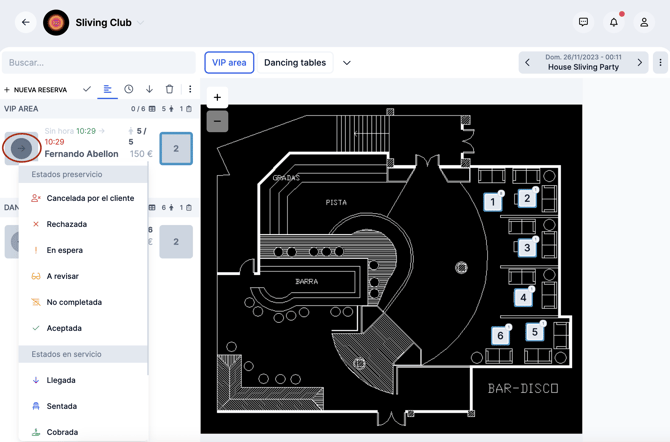
- Detailed information: Click on the customer's name to access reservation details, then click on the current status and choose the new one.
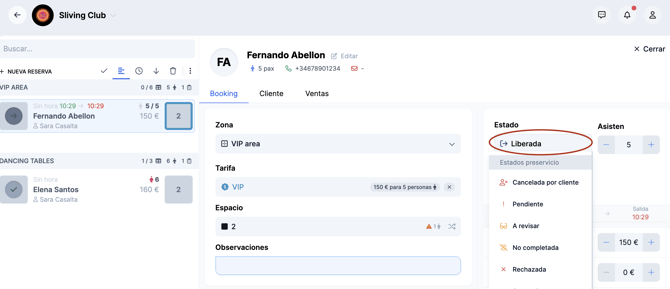
Reservation states
As mentioned, there are different states: pre-service, in-service, and post-service. These can be detailed as follows 👇🏻
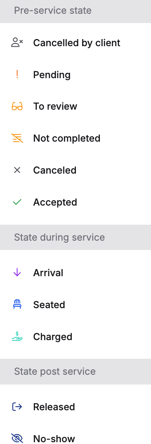
Pre-Service: states include Cancelled by customer, Pending, To review, Not completed, Cancelled, and Accepted. These cover everything from the initial request to confirmation or cancellation of the reservation before the event.
In-Service: States include Arrived, Seated, and Charged, reflecting the reception, seating, and payment status of each reservation during the service.
Post-Service: States include Released and No show, which allow for assessing the outcome of the reservation, from the completion of service without pending payments to situations where the group does not show up or charges need to be reviewed.
These states help provide detailed tracking for administrators and venue staff at each stage of the reservation process in Fourvenues.
Need help?
👥 If you need more information, please don’t hesitate to contact us at help@fourvenues.com, letting us know how we can assist you.