![fourvenues.LOGO.blanco.png]](https://base-conocimientos.fourvenues.com/hs-fs/hubfs/fourvenues.LOGO.blanco.png?height=40&name=fourvenues.LOGO.blanco.png)
Before you begin
The ability to assign permissions to users within the platform is essential for event management. Administrators of each business can register their staff on Fourvenues and, through a hierarchy of permissions, determine the actions each user can perform on the platform.
This article details how you can grant permissions to your staff. You will also find a brief guide with descriptions of each permission and its functions.
ℹ️ Who can do this? users with permissions of:
- Administrators: Can assign permissions at the organisation level.
- Event Managers: Can assign permissions for specific events.
Step by step
-
Navigate to:
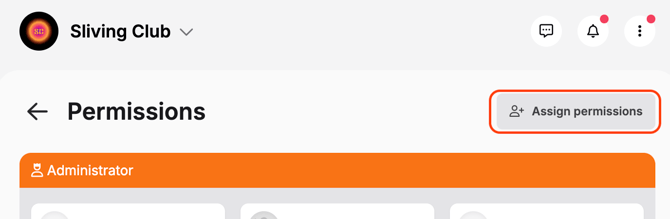
Settings > Permissions > Assign permission.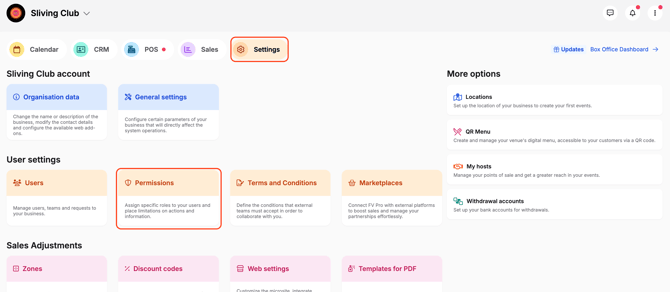
-
Choose the appropriate role for each user.
🧠 Remember!
🧑🏻⚖️ Administrator: users with this role have access to all functionalities.
🍸 Bar management: (for Fourvenues POS) users with this permission can manage the organisation’s point of sale and start sales at the bars.
👩🏻💼 Accounting: users with this role can view invoices, the wallet and event expenses, as well as request withdrawals. They can also modify the withdrawal account.
🎯 Marketing & CRM: users with this role can create and edit campaigns, manage audiences, and configure microsites.
📸 Gallery: users with this role only can upload photos to the business gallery.
🌐 Sales channel management: users with this role manage staff access to the platform within the business. They can accept/deny collaborations request, grant permissions, organize users into groups, etc..
🪩 Events management: User with this role can only create event and set prices. However, they can not view reports or manage other users´ sales.
🎟️ List/ticket/reservation management: users with this role can create prices, modify or delete sales made by other users.
📊 List/ticket/reservation report: users with this role can only view sales data.
🤳🏼 Reception for list/tickets/reservations/staff: these roles are designed for hostesses who will receive clients and staff. Reception is carried out through the Fourvenues Access App. 📈 Capacity control: allows viewing the number of tickets sold.
To grant permissions for a specific event only, follow these steps:
- Go to the Event you want to manage.
- Select Set Up Event.
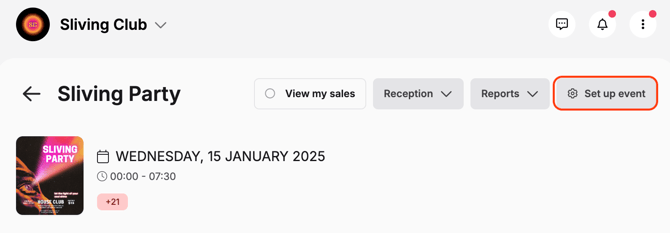
- Navigate to Event Permissions.
- Assign the desired permissions to the relevant users for this specific event.
This ensures that users only have access to the functionalities they need for that particular event.
👥 If you need more info, feel free to contact us at help@fourvenues.com, letting us know how we can assist you.