![fourvenues.LOGO.blanco.png]](https://base-conocimientos.fourvenues.com/hs-fs/hubfs/fourvenues.LOGO.blanco.png?height=40&name=fourvenues.LOGO.blanco.png)
Before You Begin
A deposit is a configurable amount your customers must pay to confirm their reservation. By requesting a pre-payment, you increase commitment and drastically reduce the risk of empty tables. Plus, you’ll have a cash forecast before the event even begins.
ℹ️ Who can do this?
-
Users with Admin permissions can enable deposits at a business level (for all events) or event level (for specific events).
-
Users with Event Management permissions can enable deposits for the events they manage.
Step by step
1. Choose whether to apply the deposit for all events or a specific one.
-
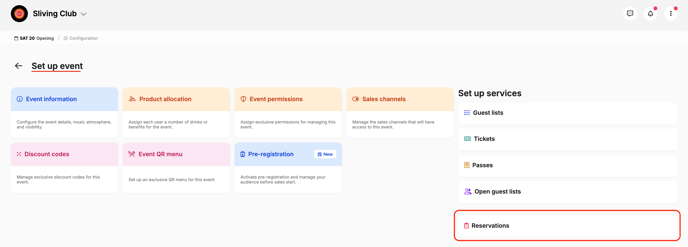
For a specific event: Go to that event’s Bookings Settings.
-
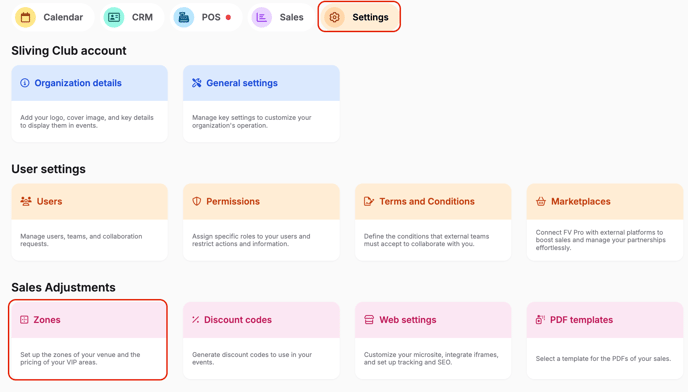
For all future events: Go to your business’s Bookings Settings. (This will apply only to newly created events.)
2. Select the rate you want to edit.
Find the specific rate under bookings settings.
3. Edit the “Deposit” option.
By default, it is set to No deposit.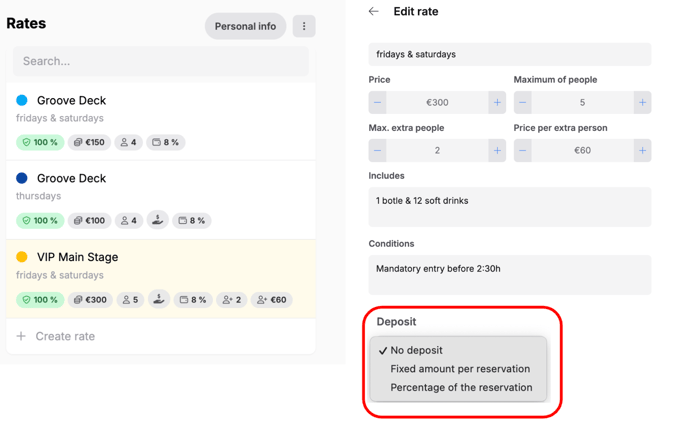
Choose between:
-
Fixed amount per reservation
-
Percentage of the total booking price
4. Enter the amount or percentage the customer must pay to confirm, and save your changes.
⚠️ This will only affect new bookings going forward. Previous bookings will keep their original settings.
Want to remove the deposit later?
Just switch the option back to No deposit and save.
🧠 Remember to apply the deposit setting to all areas and rates where you want it to be required.
Take It Further: Enable Full Payment in Advance
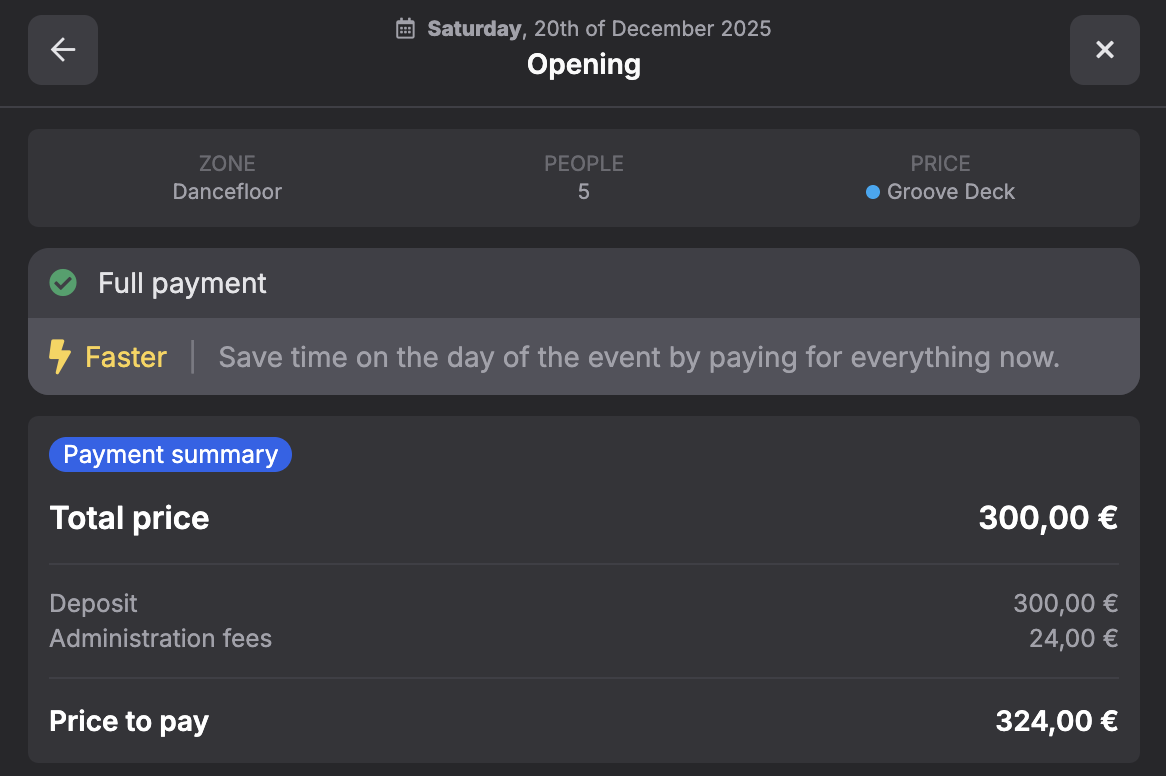
If you activate the Full booking payment option, your customers can pay the entire amount before the event.
Why it works: Once the table is paid, guests tend to spend more freely, having already covered the main cost. The remaining budget often goes towards extra drinks or add-ons.
 You can set this up easily by editing the rate and ticking Allow full booking payment. Make sure to apply it in all desired zones and rates.
Here's what your clients will see during the checkout process:
👥 If you need more information, feel free to contact us at help@fourvenues.com, letting us know how we can assist you.