![fourvenues.LOGO.blanco.png]](https://base-conocimientos.fourvenues.com/hs-fs/hubfs/fourvenues.LOGO.blanco.png?height=40&name=fourvenues.LOGO.blanco.png)
Before we begin
💡 What is an Add-on?
An add-on is any additional product or service that you can associate with a ticket. For example:
-
🥂 Drink vouchers or packs
-
🍸 A single drink
-
🧥 Cloakroom service
-
🔘 Stamps or wristbands
-
🎁 Other physical or digital items
You can offer them included in the ticket price or as optional extras that customers can add during the purchase process.
🎯 In this article, we’ll show you how to configure the different types of add-ons you can associate with your ticket types:
-
How to add add-ons included in the ticket price (e.g., a free drink pack)
-
How to limit add-ons to specific entry times
-
How to offer optional paid add-ons to boost your revenue
ℹ️ Who can do this? All users with admin permissions and event management rights can configure add-ons.
Step by Step
Access the Ticket Configuration Screen
To start setting up add-ons, you first need to edit the corresponding ticket type:
-
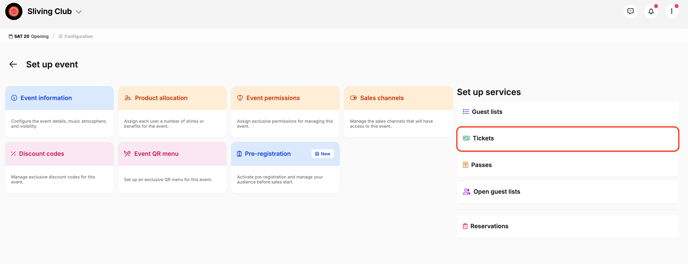
Go to your event’s set up screen.
-
Click on “Configure services: tickets.”
-
Create a new ticket type or select an existing one.
-
Inside the “Edit ticket type” screen, click “Add add-on.”
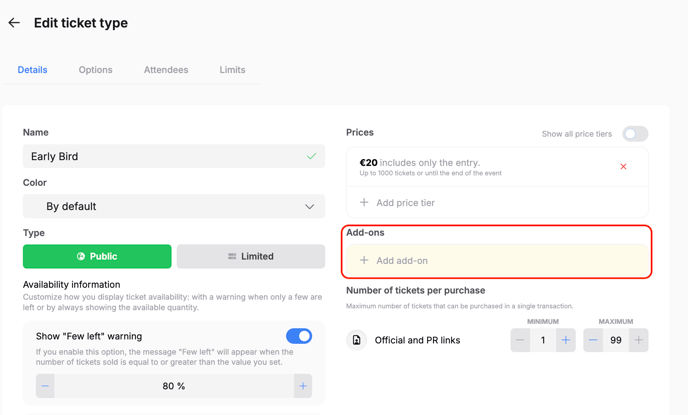
Once you’ve done that, you can start adding and customizing the add-ons as needed:
1. Add-on Included in the Ticket Price
-
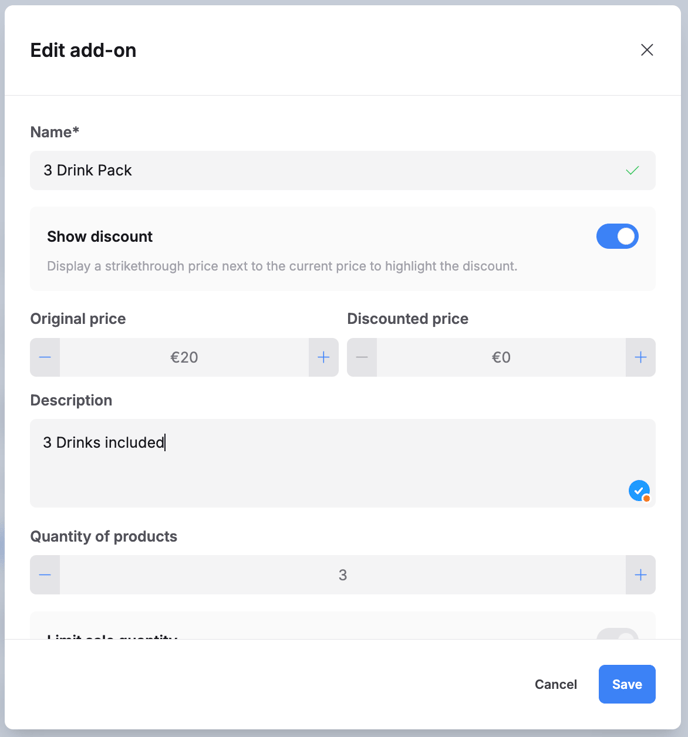
In the Name field, enter the name of the add-on (e.g., 3-Drink Pack).
-
Set the price to €0 to include it in the ticket automatically.
-
(Optional) Enable Show discount to display an original crossed-out price (e.g., Was €20).
-
In Product quantity, enter the number of units (e.g., 3 drinks).
-
Click Save.
2. Add-on Included in the Price with Time Restriction
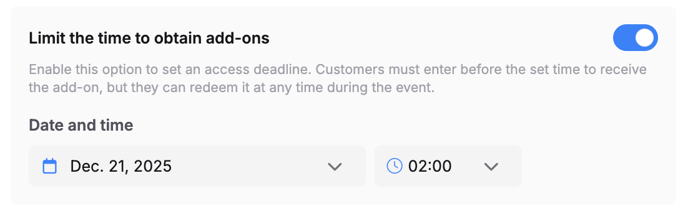
🕒 Customers must arrive before the specified time to receive the add-on, though they can redeem it at any time during the event.
-
Repeat the same steps as above to create the add-on.
-
Enable Limit the time to receive add-ons.
-
Set the time restriction (e.g., customers must arrive before 02:00 to get the drink pack).
-
Click Save.
3. Optional Paid Add-on
-
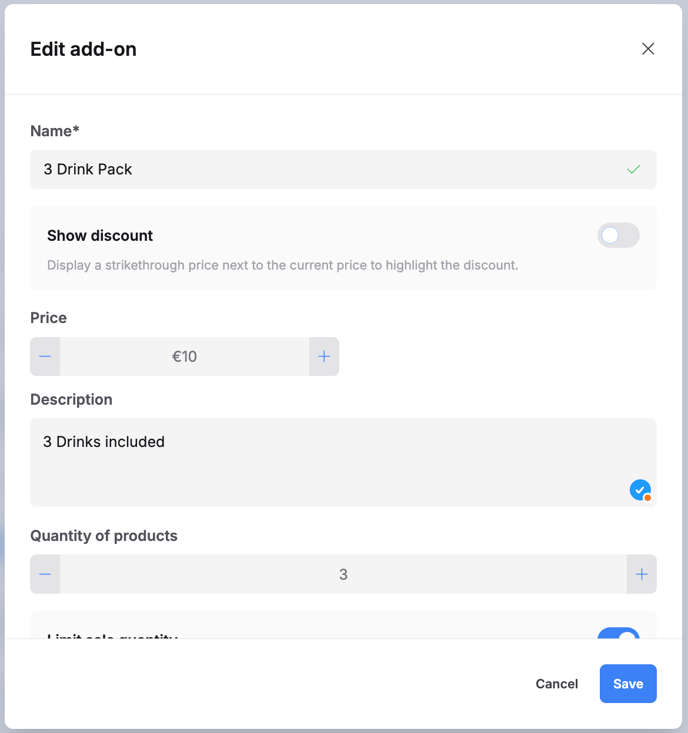
In the Name field, enter the name of the add-on (e.g., 3-Drink Pack).
-
Set a price for the Add-on (e.g., €10).
-
Enter the quantity of products (e.g., 3 drinks).
-
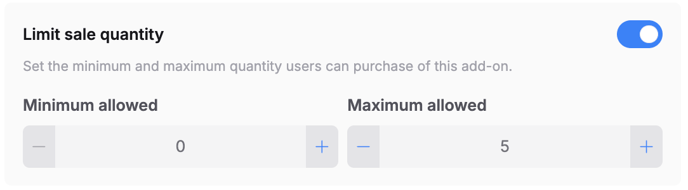
(Optional) Enable a limit sale quantity (e.g., max 5 packs per person).
-
Click Save.
👥 If you have any questions, feel free to reach out to us at help@fourvenues.com and let us know how we can assist you.