![fourvenues.LOGO.blanco.png]](https://base-conocimientos.fourvenues.com/hs-fs/hubfs/fourvenues.LOGO.blanco.png?height=40&name=fourvenues.LOGO.blanco.png)
Before you begin
An iFrame is a “frame” that can be embedded into a webpage to display content from another website, without the user having to leave your site.
In the case of Fourvenues, this means you can display your sales microsite directly on your own website and allow your customers to buy tickets or services seamlessly.
With iFrames, you can:
- ✅ Sell directly from your website without redirecting users to another platform.
- ✅ Automatically display updated events and services, since the iFrame loads Fourvenues data in real time.
- ✅ Maintain a smooth user experience with the entire purchase process integrated into your site.
- ✅ No advanced coding skills needed: simply copy and paste the script.
ℹ️ Who can do this: Users with administrator permissions and access to edit your official website.
Step by step
1. Go to Settings > Web Settings
From Fourvenues PRO, navigate to Settings > Web Settings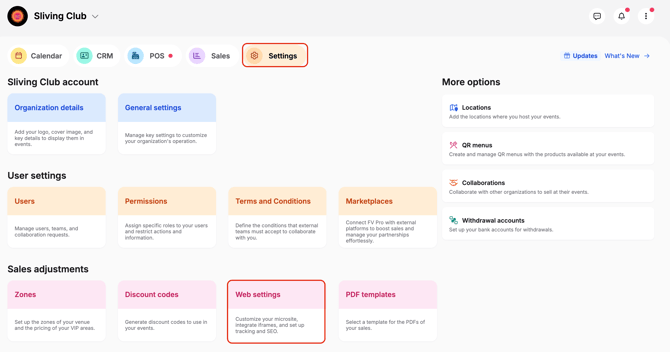
2. Select the iFrame style
Under the Theme section, choose the visual style of the iFrame to match your website’s design.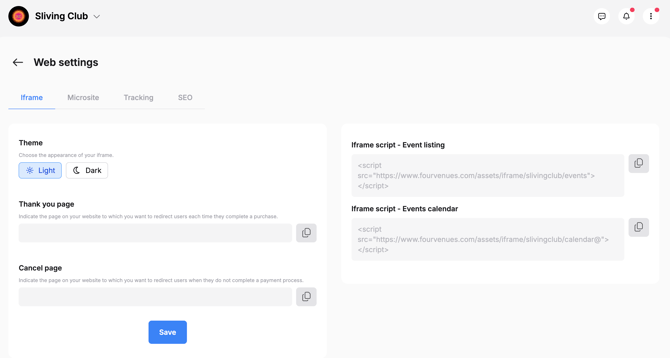
3. Copy the iFrame code
An HTML script will be automatically generated, copy it exactly as it appears.
4. Paste the iFrame into your website
Open your website editor and paste the iFrame code where you want the sales module to appear.
⚠️ Important: To avoid a double scroll effect, do not set a fixed height for the container. Instead, configure the container’s height as relative or leave it unset.
5. Verify the integration
Save the changes and open your website to confirm that the iFrame correctly loads your services and events.
6. Test the purchase process
(Optional) Make a test purchase to ensure the payment gateway works correctly and that all information is properly reflected in Fourvenues PRO.
Need help?
👥 Contact us via the PRO chat or write to help@fourvenues.com.