![fourvenues.LOGO.blanco.png]](https://base-conocimientos.fourvenues.com/hs-fs/hubfs/fourvenues.LOGO.blanco.png?height=40&name=fourvenues.LOGO.blanco.png)
Before You Begin
This article will guide you through accessing key sales reports and customer statistics in Fourvenues PRO.
ℹ️ Who Can Do This?
All users of Fourvenues PRO.
Step by Step
In Fourvenues PRO, you can access your sales count in two ways: by checking reports for a specific event or through the sales panel for an overview.
Option 1: Check the Sales Count for a Specific Event
-
Access the Event from the Calendar
Go to the "Calendar" tab and select the event you want to review. -
Open the Event Reports
In the top-right corner of the event page, click on "Reports".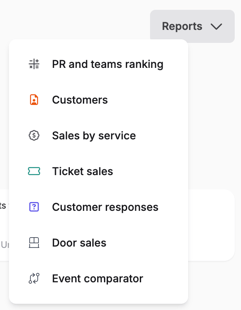
-
In the "Reports" tab, you'll find a complete analysis of your sales for the event, including:
- RRPP and Teams Ranking: Check the performance of each RRPP and team, showing their position in the ranking without revealing the exact number of sales.
- Customers: See a list of customers who made purchases on your behalf for the event.
- Sales by Service: Review the specific sales you've generated for each service offered at the event (tickets, tables, etc.).
- Ticket Sales: A breakdown of tickets sold.
- Customer responses: View comments from your customers during the sales process if the event organizers included survey questions.
- Box Office Revenue: Information on revenue generated at the box office.
- Event Comparison: Compare the performance of the current event with previous ones to analyze your sales growth.
Option 2: Check the General Sales Count
You can view the overall sales count from the "Sales" section.

- From the main menu, select the "Sales" tab.
- Scroll down all the way to access the "Recount" tab.
- Here, you can filter results by dates or events to analyze your sales activity in detail.
👥 Need More Help?
If you have any questions or need further assistance, reach out to us at help@fourvenues.com, and we’ll be happy to help you navigate reports or address any concerns.