![fourvenues.LOGO.blanco.png]](https://base-conocimientos.fourvenues.com/hs-fs/hubfs/fourvenues.LOGO.blanco.png?height=40&name=fourvenues.LOGO.blanco.png)
Before You Start
This article explains how to create a new Guest List from Fourvenues PRO.
ℹ️ Who Can Do This?
Users with the following permissions in Fourvenues PRO can create new list types:
-
Administrator
-
Event Management
-
List Management
Step by Step
To Create a New List
-
Select an Event > Configure Event > Lists
-
Click on New List Type. A small menu will open, allowing you to configure the new list's options. You will need to name it and set its privacy as Public or Limited.
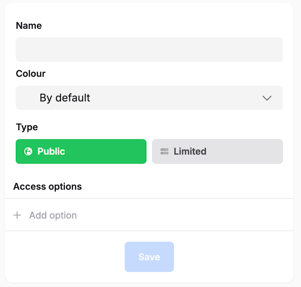
List Privacy
🔓🟢 Public: All users with access to the business can sell from the sales link.
🔐🔴 Limited: Sets sales restrictions by limiting the users and/or groups that can sell a specific rate. To restrict the list's availability to promoter groups and/or specific promoters, click on Limits > Authorised groups and teams / Authorised special users, and select the groups and individuals within your organization who should have access to the list.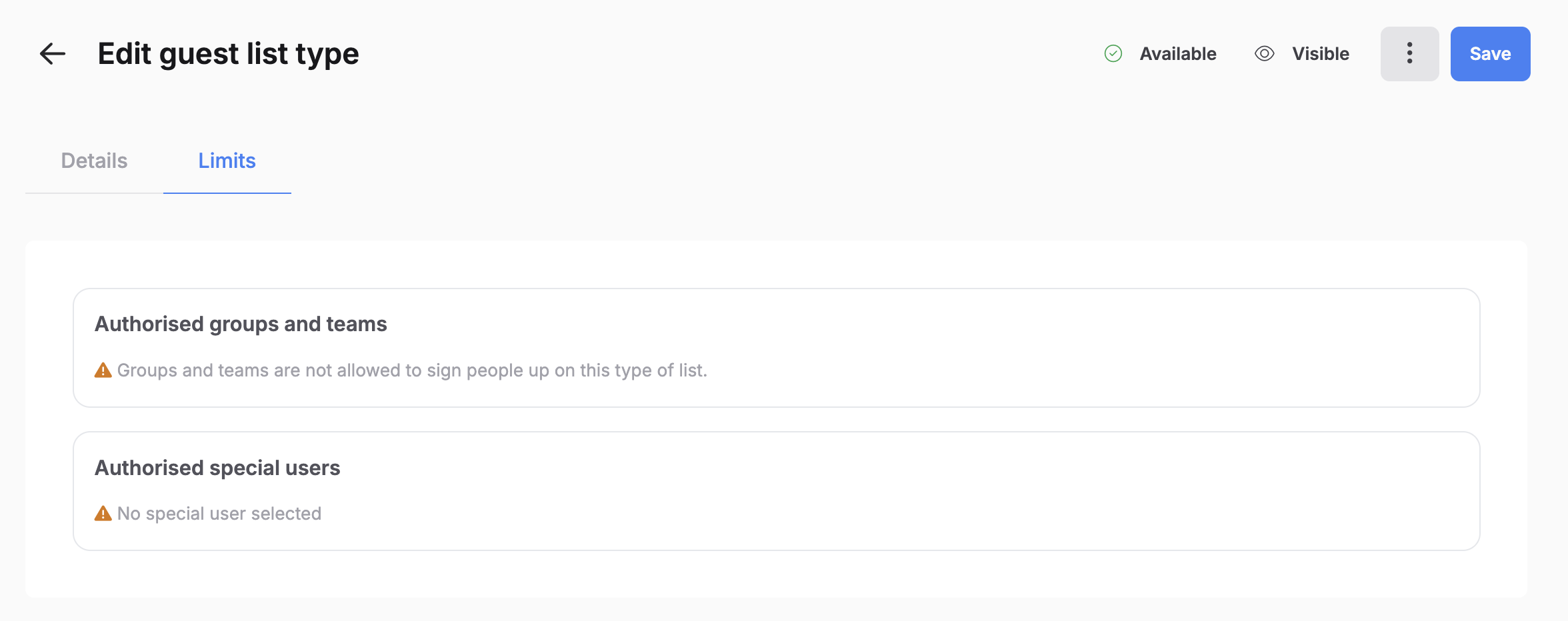
Options Configuration
The following fields can be configured for both Public and Limited lists:
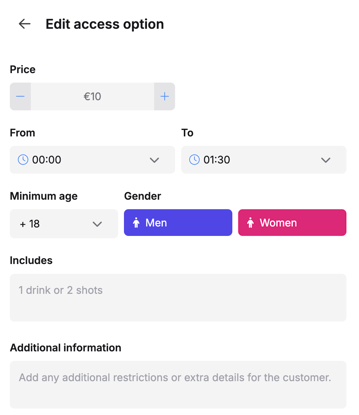
-
Set a price (payment will be made at the door).
-
Define the latest entry time.
-
Specify the gender and minimum age for list users.
-
Add perks to the rate (e.g., a drink, fast pass, stamp, etc.).
-
Include additional information that may be relevant to customers.
Other details
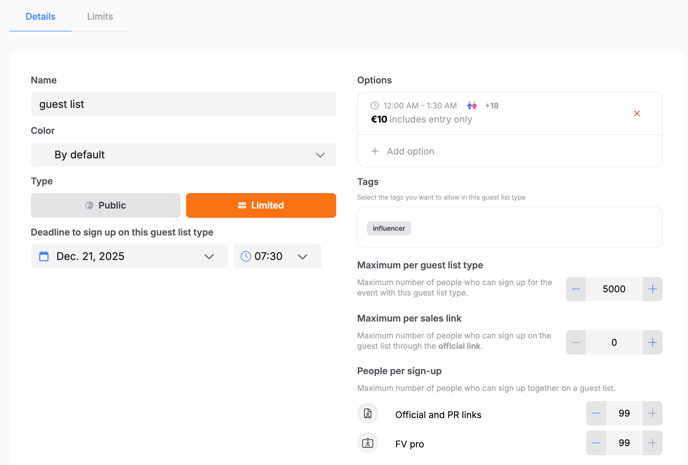
Regardless of whether the list is public or limited, you can also configure additional aspects from the Details tab, such as:
-
A deadline date and time to sign up for the list.
-
The maximum number of people who can use the list, both by list type and through the official sales link.
-
In the People per sign-up section, you can set the group size that each promoter can add to the list through their sales links or internally.
👥 If you need more information, feel free to contact us at help@fourvenues.com, letting us know how we can assist you.