![fourvenues.LOGO.blanco.png]](https://base-conocimientos.fourvenues.com/hs-fs/hubfs/fourvenues.LOGO.blanco.png?height=40&name=fourvenues.LOGO.blanco.png)
Before You Begin
⚠️ Note: A group leader can view the sales report of every team member in their group.
Group leaders cannot make changes to any user’s sales.
ℹ️ Who can do this: Users with Administrator and Sales Channel Management permissions can assign group leaders.
Step by Step
1. Go to "Users" from the Settings tab
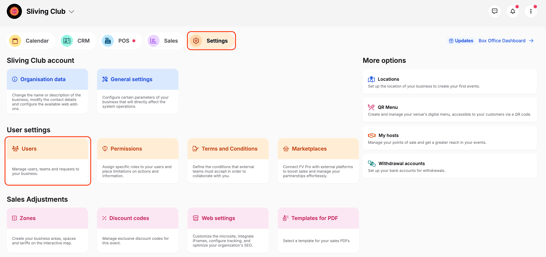
Choose the group you want to assign a leader to from the top bar. In the example shown, we’re assigning a leader to the Public Relations (PR) group.
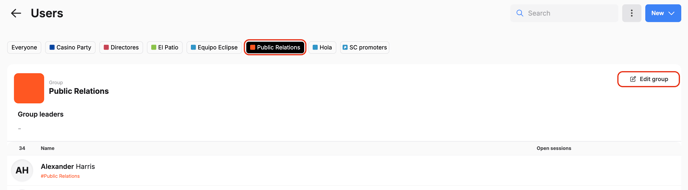
3. Edit the Group
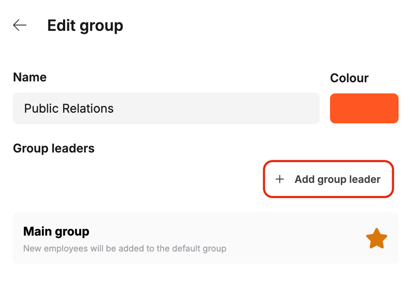
- Once inside the group, click Edit Group.
- A menu will appear where you can assign one or more users as group leaders.
👥 If you require further information, feel free to contact us at help@fourvenues.com, and let us know how we can assist you!