![fourvenues.LOGO.blanco.png]](https://base-conocimientos.fourvenues.com/hs-fs/hubfs/fourvenues.LOGO.blanco.png?height=40&name=fourvenues.LOGO.blanco.png)
Before You Begin
This guide will show you how to access and update your personal information within the platform and on your RRPP link.
ℹ️ Who Can Do This?
All users of Fourvenues PRO.
Step By Step
1. Access Your User Profile
To edit your profile, navigate to the user settings section in Fourvenues PRO. Once logged into PRO, click on the three dots in the top-right corner and select "My Profile".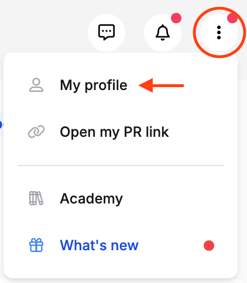
2. Complete or Update Your Personal Information
In the "General" tab, you’ll find all the fields you can update. Below is a breakdown of each field:
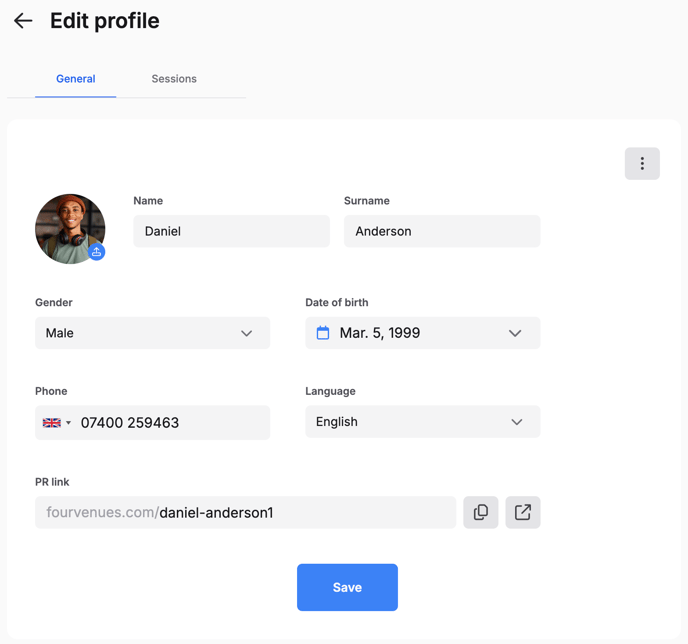
- 🤳🏼 Profile Picture: Upload a picture for your profile. It will be visible both within the platform and on your RRPP link.
- ✒️ Name and Surname: Use your real name for better identification.
- 👥 Gender: This information will not be visible to your clients.
- 📅 Date of Birth: This information will not be visible to your clients.
- 🤙🏼 Phone Number: Add an up-to-date contact number. This will also remain hidden from your clients.
- 🔤 Language: Set your preferred platform language. Available options include Spanish, English, and French.
- 🪩 RRPP Link: Customize your sales link on Fourvenues (e.g., fourvenues.com/your-name).
⚠️ Note: Before changing your personal sales link, make sure the desired link is available.
How to Check Availability?
Enter your desired link (e.g., fourvenues.com/your-name) into your browser’s address bar. If the link doesn’t exist, you can use it. If it’s already taken, try a different variation until you find one that’s available.
3. Save Your Changes
After updating any of these fields, ensure you click "Save" before exiting to apply the changes correctly.
🎉 Your profile is now personalized and ready to share with your clients!
👥 Need More Help?
If you have any questions or require further assistance, contact us at help@fourvenues.com for support with session management or any other inquiries.